

A laptop docking station adds ports for screens, charging, storage, and network gear through one connection. It can help students, remote workers, and home office users keep a tidy desk. This guide to the best budget docking station compares useful, affordable options for common setups.
A cheap dock can seem like a win until a screen stays dark, a laptop charges slowly, or two monitors show the same image. Port names can also mislead: a dock’s display support depends on your laptop, operating system, and the dock itself. Some models need a separate power supply or software, too. Those small details can turn a neat desk into a daily hassle. Checking your laptop’s ports and the dock’s limits first helps you avoid wasted money and choose the best budget docking station for the way you really work.
I compare docking stations by their ports, power needs, display support, software demands, and fit for everyday desk use. I also check the supplied product details against common laptop and operating system limits, rather than treating every port as a promise of universal support. This guide to the best budget docking station puts clear compatibility, useful features, and practical value first.
What you’ll learn
- How to match a dock’s ports and display support to your laptop
- Which models suit multi-monitor work, everyday use, or a home office
- When a dock needs a charger or extra display software
- How to choose the best budget docking station for your setup
In This Article
How To Choose The Best best budget docking station
The right dock can make your laptop desk feel simple, but the wrong one may add new problems. A screen count on a box does not promise the same setup on every laptop. Check your computer’s ports, operating system, screen needs, and charging needs before you buy. Some docks need a separate charger; others rely on software to add displays. A little checking can prevent slow charging, mirrored screens, or a dock that will not fit your workflow. These are the key details to review when choosing the best budget docking station.
Check Laptop and Display Compatibility
Start with your laptop model and operating system, then check which display modes its USB-C or USB-A port supports. A USB-C plug does not always carry video, and some multi-screen docks rely on DisplayLink software. Mac and Windows laptops can also handle external displays in different ways. Read the dock’s compatibility notes before you buy. For flexible multi-screen use, the Anker triple-display model offers several video outputs, but confirm your laptop can use them as intended. This check matters more than a large port count when choosing the best budget docking station.
Match Ports and Power to Your Desk
List the devices you use each day: screens, keyboard, mouse, storage, wired network, and headset. Then make sure the dock has enough of the right ports. Check power delivery, too. Anker’s listed maximums are up to 80W and 85W for its two hubs, while the Dell WD25 lists 100W. The Anker products say a charger is not included, so you may need to supply one. Choose a dock that meets your laptop’s charging needs and leaves room for key devices. Extra ports are useful only when they serve your real setup.
Consider Setup, Software, and Long-Term Use
A simple USB-C dock can be quick to set up, while a DisplayLink dock may need a driver and permission to work. That software can be helpful for supported multi-monitor setups, but it adds a step and may not suit every task. The Plugable UD-3900 requires a driver, so check its current instructions for your computer before buying. Also look at cable placement, desk space, and whether the dock needs its own power source. The best budget docking station is the one that works reliably with your devices, not simply the one with the most ports.
Quick Comparison
| Model | Category | Best For | Key Spec | Amazon |
|---|---|---|---|---|
| Anker 14-in-1 Triple Display Dock | Multi-display | Users needing several video outputs | Dual 4K HDMI, VGA, up to 80W PD | Amazon |
| Dell Pro Dock WD25 | Office dock | Compatible work laptops and desk setups | USB-C, up to 100W, Ethernet | Amazon |
| Anker 8-in-1 Dual HDMI Hub | Compact hub | Everyday USB-C laptop users | Dual HDMI, Ethernet, up to 85W PD | Amazon |
| Plugable UD-3900 USB 3.0 Dock | Driver-based dock | Users who need extra USB ports | Dual HDMI, Gigabit Ethernet, six USB ports | Amazon |
In-Depth Reviews for best budget docking station
1.Anker 14-in-1 Triple Display Dock
 Anker 14-in-1 Triple Display Dock
” />
This Anker 14-in-1 USB-C dock brings together dual HDMI, VGA, USB-A, USB-C data ports, and up to 80W power delivery. Its range of connections can reduce desk clutter and keep common gear ready to use. For a best budget docking station shortlist, it stands out for users who need several video outputs, provided their laptop supports the desired display setup.
The hub suits a home office with monitors, storage, and input devices connected in one place. Its many ports make it easier to leave accessories plugged in and connect a compatible laptop with one cable. Check your computer’s video support before relying on multiple screens, since the dock cannot add display features that the laptop does not support. A charger is not included.
The compact hub keeps accessories together, though you will need space for connected cables. Its stated port range offers useful flexibility for the price class. Factor in the cost of a compatible charger, and confirm your laptop’s display support before buying.
Why It’s Great
- Offers HDMI and VGA outputs for varied monitor connections.
- Provides a broad selection of USB-A and USB-C data ports.
- Supports up to 80W power delivery with a suitable charger.
- Can help reduce desk clutter by grouping accessories.
- Useful for users who need more than a basic USB-C hub.
Good to Know
- The charger is not included, so budget for one if needed.
- Actual screen count and resolution depend on laptop and operating system support.
- A large set of ports may be more than a simple desk setup needs.
2.Dell Pro Dock WD25 USB-C
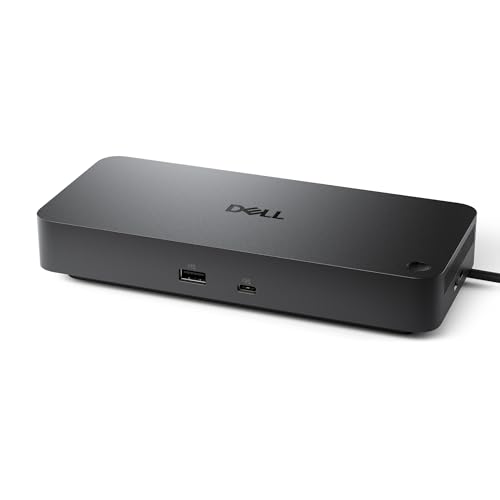 Dell Pro Dock WD25 USB-C
” />
The Dell Pro Dock WD25 is a USB-C docking station with up to 100W power delivery, DisplayPort, HDMI, Ethernet, USB-A, and USB-C ports. That mix suits a fixed office desk where a laptop needs charging, wired network access, and connected accessories. It is a strong best budget docking station candidate for compatible work setups that value a single dock connection.
This dock is aimed at people who want to leave screens, network, and USB gear connected between work sessions. The mix of video and data ports can simplify a daily desk routine, while the listed power delivery can charge supported laptops. Check your laptop’s requirements and Dell’s compatibility details first. Multi-display support depends on the host computer and connected screens.
A desk dock is easier to keep tidy when its cables stay in place, and this port selection can help. Its office-focused design offers practical value for compatible systems. Check what is included and confirm laptop support before comparing its cost with compact hubs.
Why It’s Great
- Lists up to 100W power delivery for supported laptops.
- Includes Ethernet for a wired network connection.
- Offers DisplayPort and HDMI for monitor connections.
- Combines USB-A and USB-C ports for common accessories.
- Suited to a work desk where devices remain connected.
Good to Know
- Confirm compatibility with your exact laptop before ordering.
- Maximum charging power depends on the laptop and power setup.
- Display count and resolution depend on host support and monitor configuration.
3.Anker 8-in-1 Dual HDMI Dock
 Anker 8-in-1 Dual HDMI Dock
” />
This Anker 8-in-1 USB-C hub combines dual HDMI outputs, Gigabit Ethernet, an SD and TF card reader, and USB data ports. It supports up to 85W power delivery when paired with a suitable charger, which is sold separately. For a best budget docking station, it offers useful desk and travel connections without the footprint of a larger office dock.
The compact layout suits USB-C laptop owners who switch between a desk and other work spots. HDMI, wired network, and card readers can make routine tasks easier without a stack of adapters. Check your laptop’s support for multiple external screens, since operating system and host limits can affect the result. The product listing notes that a charger is not included.
Its small form makes it simple to store beside a laptop or pack for a trip. The integrated ports offer solid everyday value if they match your needs. Include a compatible charger in your budget, and confirm display behavior before buying.
Why It’s Great
- Combines two HDMI ports in a compact USB-C hub.
- Includes Gigabit Ethernet for wired network access.
- Adds SD and TF card readers for compatible media.
- Supports up to 85W power delivery with a suitable charger.
- A practical choice for a smaller desk or travel bag.
Good to Know
- A charger is not included.
- Dual HDMI does not guarantee two independent screens on every laptop.
- Requires a compatible USB-C port for its intended functions.
4.Plugable UD-3900 USB 3.0 Dock
 Plugable UD-3900 USB 3.0 Dock
” />
The Plugable UD-3900 is a USB 3.0 universal laptop dock with two HDMI outputs, Gigabit Ethernet, audio, and six USB ports. It can connect through USB 3.0 or USB-C, and it requires a driver for its display features. This best budget docking station option is notable for users who want many USB connections and can install the needed software.
This dock suits a desk with several USB accessories, wired internet, and two screens. Its broad port selection can cut down on daily plug swaps, while USB 3.0 or USB-C connection options offer flexibility. The driver requirement means setup is not purely plug and play. Check the current driver and operating system support before choosing it for work.
Its desk-based design is best left connected rather than carried around each day. The many USB ports can offer good value for accessory-heavy setups, but the driver adds a setup step. Check display needs and laptop support to ensure it fits your routine.
Why It’s Great
- Provides six USB ports for multiple accessories.
- Includes two HDMI outputs for compatible display setups.
- Adds Gigabit Ethernet and audio connections.
- Can connect through USB 3.0 or USB-C.
- Useful for users who want a central desk connection point.
Good to Know
- A driver is required for the dock’s display functions.
- Display support and performance depend on the host system and software.
- It is less suited to users who want a simple, driver-free setup.
Final Thoughts: The Verdict
My personal top pick is the Anker 14-in-1 Triple Display Dock for its wide range of connections and flexible video outputs. It is a strong best budget docking station choice for people who need several ports, as long as their laptop supports the screens they plan to use. Check the charger requirement before ordering.
For a compact setup, consider the Anker 8-in-1 Dual HDMI Dock. The Dell WD25 suits compatible office laptops, while the Plugable UD-3900 fits users who need many USB ports and can install its driver. Match your choice to your laptop, screen needs, and budget.
1 thought on “Best Budget Docking Station: Affordable Picks That Work”
Comments are closed.