
A laptop docking station can turn one USB-C connection into a tidy hub for multiple monitors, power, and desk gear. It is useful for home offices, creators, and anyone who switches between a laptop and a full desk setup. This guide to the best computer station for multiple monitors compares five dock options.
A dock can look perfect on a product page and still leave you with a blank screen, slow charging, or fewer displays than expected. That is frustrating when a deadline is close and cables are spread across your desk. One common mistake is to count HDMI ports without checking what the laptop can actually drive. Some systems limit the number of external screens, and Mac and Windows setups can behave differently. Power needs matter, too. Choosing the right dock helps avoid wasted money and makes a multi-monitor workspace feel smooth, not fussy.
I focus on practical laptop and desk setups, where stable screens and simple cable changes matter more than a long port list. I compared the listed docks by monitor options, charging claims, connectivity, and key compatibility cautions. Since product specs alone cannot confirm every laptop setup, I also considered where buyers should verify their device limits. This guide prioritizes clear trade-offs, useful features, and fewer surprises.
What you’ll learn
- How to match a dock’s display ports to your laptop and monitors.
- Which listed dock offers ports for a two- or three-screen desk.
- Why power delivery and included chargers matter.
- What to check before buying a multi-monitor docking station.
In This Article
How To Choose The Best best computer station for multiple monitors
The best computer station for multiple monitors is not simply the dock with the most video ports. Your laptop must support the number of screens and the display method the dock uses. A low-cost hub may also lack enough power, useful ports, or clear setup guidance. Before you buy, check your laptop model, operating system, screen count, and display resolution. Then compare charging needs and included accessories. These steps can prevent flicker, blank screens, and extra spending on adapters that a little research could have avoided.
Check Laptop and Monitor Support
Start with your laptop’s manual or maker support page. Check how many external displays it supports, which USB-C port carries video, and whether its operating system supports the dock’s display mode. Two HDMI ports do not guarantee two independent screens on every laptop. Mac and Windows systems can differ, and some setups may mirror displays instead of extending them. Match the dock’s listed video outputs to your monitors and target resolution. If you need three screens, confirm that your exact laptop can drive three external displays before choosing a dock.
Match Ports, Power, and Accessories
Count the ports you will use each day: HDMI or DisplayPort, USB-A, USB-C, Ethernet, audio, and card readers. Also compare the dock’s power delivery with your laptop’s charging needs. A 100W power claim does not always mean your laptop receives the full amount, and some listings exclude the power adapter. Check the fine print before buying. The Anker, TobenONE, and other listed models note that a charger is not included. A compact two-monitor setup may need fewer ports than a workstation with drives, a webcam, and wired network access.
Plan for Setup and Desk Use
Think about where the dock will sit and how often you connect or unplug your laptop. A single-cable setup can clear clutter, but short cables or a crowded port layout may make daily use awkward. Check whether your monitors need HDMI, DisplayPort, or an adapter, and allow room for the dock and its power supply. Read the exact model’s setup notes, especially if it uses a screen-off button or offers several display modes. The best computer station for multiple monitors should fit your desk habits, not just look impressive in a spec list.
Quick Comparison
| Model | Category | Best For | Key Spec | Amazon |
|---|---|---|---|---|
| Anker 8-in-1 Dual Monitor Dock | Compact pick | Simple laptop desk setups | Dual HDMI, up to 85W PD | Amazon |
| MOKiN 14-in-1 Dock | Port-rich pick | Users needing many video ports | 2 HDMI, 2 DP, up to 87W PD | Amazon |
| TobenONE 18-in-1 Dock | Triple-monitor pick | Busy multi-screen workstations | 3 HDMI, up to 3 displays | Amazon |
| LIONWEI 13-in-1 Dock | Flexible pick | Mixed HDMI and DisplayPort setups | HDMI, DP, up to 100W PD | Amazon |
| Dell Pro WD25 Dock | Office pick | Dell-led office workspaces | USB-C, up to 100W, quad display claim | Amazon |
In-Depth Reviews for best computer station for multiple monitors
1.Anker 8-in-1 Dual Monitor USB-C Dock
 Anker 8-in-1 Dual Monitor USB-C Dock
” />
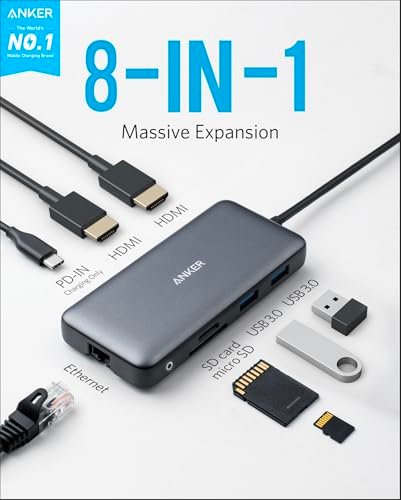
The Anker 8-in-1 dock puts two HDMI outputs, Gigabit Ethernet, card readers, and USB ports in a compact hub. Its listing states up to 85W power delivery, so it can help reduce desk cables while charging a compatible laptop. For a best computer station for multiple monitors, it stands out as a clear, simple choice for common two-screen work.
This dock suits people who want a neat setup for office tasks, calls, and light creative work. Connect your laptop, monitors, network cable, and accessories through one hub, then keep the dock close at hand. Its compact form works well on a crowded desk or in a shared home office. Check your laptop’s display support first, since the hub cannot add screen capacity your computer lacks.
The small hub is easy to place and keeps several connections in one spot. Its tidy layout can make a desk easier to manage, though the power adapter is not included. Check the charging needs and display limits of your laptop before buying. It offers useful value when its ports and output match your setup.
Why It’s Great
- Two HDMI ports support a straightforward two-monitor desk layout.
- Gigabit Ethernet offers a wired network option.
- SD and TF readers help transfer files from cards.
- USB-C power delivery can charge compatible laptops.
- Compact size helps reduce desk clutter.
Good to Know
- The listing says the charger is not included.
- Actual monitor support depends on the laptop and operating system.
- The USB-C host connection must support video output for external screens.
2.MOKiN 14-in-1 Multi-Monitor USB-C Dock
 MOKiN 14-in-1 Multi-Monitor USB-C Dock
” />
The MOKiN 14-in-1 dock offers two HDMI and two DisplayPort outputs, along with Ethernet, card readers, USB ports, and up to 87W power delivery as listed. Its broad set of video connections gives a multi-monitor desk more ways to connect screens. It may suit users who value flexible ports in a single laptop docking station.
This hub is aimed at people building a work desk with several screens and a mix of accessories. A screen-off button is listed for quick display control, while its varied video ports can help fit different monitor cables. It is best for buyers who will check their exact laptop and OS support first. Port count alone does not guarantee three independent screens.
The many ports can help keep cables gathered at the desk, though the hub needs space for connected leads. Confirm which display modes work with your computer before setting up several screens. The charger details are not clear in the supplied product title, so check the listing. Its value rests on using the ports you need.
Why It’s Great
- Two HDMI and two DisplayPort outputs offer cable flexibility.
- A 14-in-1 design combines display and data connections.
- Listed power delivery reaches up to 87W.
- Ethernet and card readers support a fuller desk setup.
- A screen-off button may simplify display control.
Good to Know
- The listing’s multi-screen claims still depend on laptop and OS support.
- Check the exact resolution and refresh-rate limits before purchase.
- The supplied product information does not clarify whether a power adapter is included.
3.TobenONE 18-in-1 Triple-Monitor Dock
 TobenONE 18-in-1 Triple-Monitor Dock
” />
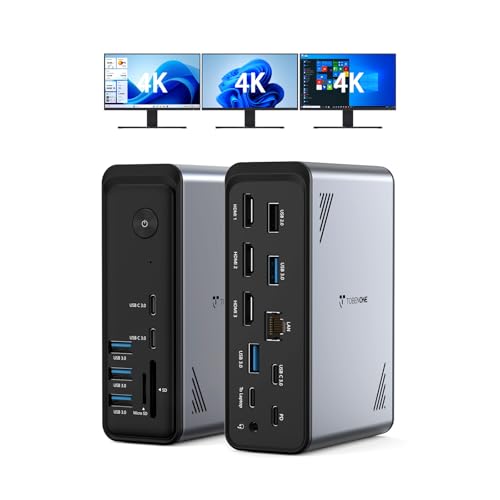
The TobenONE 18-in-1 dock is built for desks that need several connections, with three HDMI outputs, multiple USB-A and USB-C ports, Ethernet, and listed Power Delivery 3.0. The product title describes support for three 4K screens. This makes it a strong candidate for a best computer station for multiple monitors, if your laptop supports the required display setup.
This dock is suited to office users who keep many devices connected and want a central hub for a laptop workstation. Its three HDMI ports can simplify cable planning for compatible screens, while Ethernet and the large USB count cover common desk needs. The supplied listing says no power adapter is included, so plan for a suitable adapter and check laptop display limits.
A central dock can make a busy desk easier to organize, but its larger port count needs room for cables. Build quality and value should be judged against the features you will use, not the port total alone. Factor in the extra power adapter cost. Confirm screen support and charging needs before purchase.
Why It’s Great
- Three HDMI outputs suit compatible three-screen workspaces.
- The 18-in-1 layout provides many connection options.
- Ethernet supports a wired network connection.
- USB-A and USB-C ports can connect several desk devices.
- Its feature set is aimed at multi-monitor office work.
Good to Know
- The listing says no power adapter is included.
- Triple-screen support depends on your laptop’s video hardware and operating system.
- Confirm that the desired 4K resolution works across your planned displays.
4.LIONWEI 13-in-1 Triple-Display USB-C Dock
 LIONWEI 13-in-1 Triple-Display USB-C Dock
” />
The LIONWEI 13-in-1 dock combines HDMI and DisplayPort outputs with Ethernet, audio, and eight USB-A and USB-C ports, according to its title. It lists up to 100W power delivery and triple 4K support. This broad mix makes it a flexible best computer station for multiple monitors for buyers who need displays and many everyday peripherals.
The mix of HDMI and DisplayPort can suit desks where monitors use different cables. A switching button is listed for changing modes, and the extra USB ports can keep a keyboard, mouse, storage, or other devices connected. It is best for users who want one hub for a laptop desk. Check your computer’s display mode support before relying on triple-screen output.
The dock’s many ports can help reduce loose adapters and keep daily gear in one place. Check the adapter and charging details on the product listing before ordering, as the supplied title does not state that a charger is included. Its value is strongest when your laptop can use the display modes and ports.
Why It’s Great
- HDMI and DisplayPort outputs offer monitor cable flexibility.
- The listing states support for up to three 4K displays.
- Up to 100W power delivery is listed.
- Eight USB-A and USB-C ports support desk accessories.
- Ethernet and audio add useful workstation connections.
Good to Know
- Actual display count and resolution depend on the laptop and operating system.
- Check whether the required power adapter is included.
- Confirm what the switching button changes before purchase.
5.Dell Pro WD25 USB-C Docking Station
 Dell Pro WD25 USB-C Docking Station
” />
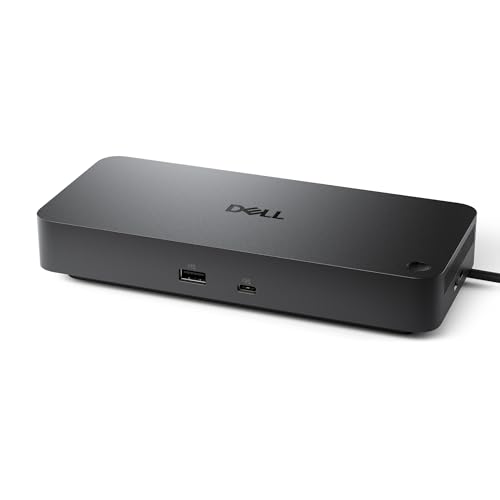
The Dell Pro WD25 is listed as a USB-C universal dock with up to 100W power delivery, DisplayPort, HDMI, Ethernet, USB-A, and USB-C ports. Its product title also claims quad-display support and plug-and-play use. For an office workstation, it may offer a central place for power, monitors, and daily accessories, subject to computer compatibility.
This dock may suit an office user who wants a familiar wired setup with several display and data connections. Its mix of HDMI and DisplayPort can help connect common monitor types, while USB ports support desk gear. Before buying, verify the exact WD25 model’s display limits with your computer and screens. The number of ports does not ensure four independent displays.
A dedicated dock can keep a work desk neater by grouping its cables in one place. Check the package details, power needs, and device compatibility before ordering. Its value depends on whether your office setup can use the stated display and charging features. Confirm the exact model and supported display configurations.
Why It’s Great
- Up to 100W power delivery is listed.
- HDMI and DisplayPort offer common monitor connections.
- Ethernet provides a wired network option.
- USB-A and USB-C ports support everyday office devices.
- The product is positioned as a plug-and-play office dock.
Good to Know
- Verify quad-display support for your exact laptop and monitor setup.
- Confirm the dock’s included power supply and package contents.
- The supplied title does not give detailed resolution limits for each display.
Final Thoughts: The Verdict
My personal top pick is the LIONWEI 13-in-1 Dock for its useful mix of HDMI, DisplayPort, USB ports, Ethernet, and listed 100W power delivery. It is a flexible choice for a busy desk, provided your laptop supports the screens you plan to connect. For the best computer station for multiple monitors, check device compatibility before counting on triple 4K output.
For a simpler two-screen setup, the Anker 8-in-1 Dock is a compact alternative. The TobenONE suits users who need three HDMI ports, while the Dell may appeal to office buyers seeking a branded hub. Compare your laptop’s display limits and power needs, then choose the dock that fits your desk and budget.
1 thought on “Best Computer Station For Multiple Monitors: Smart Desk Setup”
Comments are closed.