
A computer docking station for multiple monitors connects a laptop to extra screens, power, and desk gear through one hub. It suits home workers, creators, and anyone who wants a tidy workspace. People buy one to add ports, reduce cable clutter, and move between desk and laptop with less hassle.
A dock that looks right on the box can still cause a frustrating desk setup. One screen may stay dark, both displays may show the same image, or the laptop may charge too slowly. Some buyers overlook their laptop’s video limits or assume every USB-C port supports video. A dock also needs enough power for the laptop and enough bandwidth for the screens and accessories. Checking these details first can save you from return hassles and a workspace that never feels seamless.
I focus on laptop docks and practical desk setups, with an eye for the small details that shape daily use. For this guide, I compared the listed port, display, and power features, and considered the host-device limits buyers should check. I prioritize clear compatibility advice, useful trade-offs, and options for different desk needs.
What you’ll learn
- How to check laptop compatibility before buying a dock.
- Which display and charging specs matter for your setup.
- How the five listed docks differ in ports and monitor support.
- What trade-offs to consider before choosing a model.
In This Article
How To Choose The Best Computer Docking Station for Multiple Monitors
The best computer docking station for multiple monitors is one that works with your laptop, screens, and daily tasks—not just one with the most ports. A common mistake is to assume that USB-C always carries video or that a dock can make any laptop run three screens. Low-cost models may also lack enough power or clear display details. Before buying, check the laptop’s port and operating system, the dock’s display modes, and whether a power adapter is included.
Check Your Laptop’s Display Support
Start with the laptop, not the dock. Check whether its USB-C port supports DisplayPort Alt Mode or Thunderbolt, and how many external screens the computer can drive. Windows laptops may use MST to extend screens through a compatible dock, while many Macs have different external-display limits. Do not assume that two HDMI ports mean two separate screens; some docks mirror the same image. The best computer docking station for multiple monitors is the one that matches your exact laptop model and operating system. Check the maker’s support details before you order.
Match Ports, Resolution, and Refresh Rate
Count the ports you will use and check the supported resolution and refresh rate for each display. A label such as 4K does not always mean every screen can run at 4K at the same time. The cable, laptop graphics, dock chipset, and selected display mode all affect results. HDMI and DisplayPort options offer flexibility, but confirm the exact combination your screens need. If you use two monitors for office work, a dual-display dock may be enough. For three screens or high-resolution work, verify the full multi-screen mode before buying.
Plan for Power and Everyday Connections
Look at power delivery, included accessories, and the ports you use each day. A dock’s stated charging figure is usually a maximum, and your laptop may receive less after the dock uses power. Several models here do not include a power adapter, so add that cost if you need a powered setup. Check for Ethernet, card readers, audio, and enough USB ports for your gear. A good dock should make the desk simpler, not add another shopping list. Match the power supply to your laptop’s needs.
Quick Comparison
| Model | Category | Best For | Key Spec | Amazon |
|---|---|---|---|---|
| Anker 8-in-1 Dual Monitor Dock | Best Overall | Everyday dual-screen desks | Dual HDMI; up to 85W PD | Amazon |
| MOKiN 14-in-1 Dock | Most Ports | Flexible multi-screen setups | 2 HDMI, 2 DP; up to 87W PD | Amazon |
| LIONWEI 13-in-1 Dock | Fast Connectivity | Users needing many USB ports | Up to 10Gbps; up to 100W PD | Amazon |
| Dell Pro Dock WD25 | Office Ready | Dell and mixed-device offices | USB-C; up to 100W power delivery | Amazon |
| TobenONE 18-in-1 Dock | Triple-Screen Focus | Compatible Windows multi-screen desks | Three HDMI; power adapter not included | Amazon |
In-Depth Reviews for the Best Computer Docking Station for Multiple Monitors
1.Anker 8-in-1 Dual Monitor Dock
 Anker 8-in-1 Dual Monitor Dock
” />
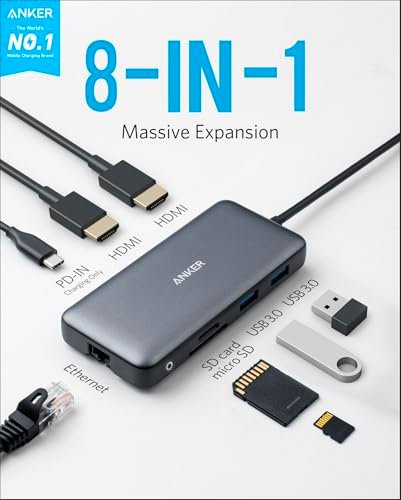
This Anker 8-in-1 USB-C hub offers two HDMI ports, Gigabit Ethernet, USB connections, and SD and TF card readers. It supports up to 85W pass-through power when paired with a suitable charger. For a compatible laptop, it can simplify a dual-screen desk. Check the laptop’s display support and the dock’s display mode before choosing it.
Its compact hub design suits a work bag or a small home desk. The HDMI ports make it easy to connect common monitors, while Ethernet and card slots help reduce extra adapters. It is best for laptop users who need two displays and everyday ports, not a large station packed with specialized connections.
The tidy layout can help keep a desk neat, and the brand is well known for accessories. A charger is not included, so factor that into the cost. Its value is strongest for buyers who need a compact dual-monitor hub and can confirm compatibility first.
Why It’s Great
- Two HDMI ports offer a simple way to connect compatible displays.
- Gigabit Ethernet provides a wired network option.
- SD and TF readers are useful for photo and file transfers.
- Compact size makes it easy to move between desks.
- Up to 85W pass-through power can reduce laptop charging clutter with a suitable charger.
Good to Know
- A charger is not included.
- Display extension depends on the laptop, operating system, and supported video mode.
- The product title’s dual-monitor claim does not guarantee two independent screens on every Mac or laptop.
2.MOKiN 14-in-1 Multi-Monitor Dock
 MOKiN 14-in-1 Multi-Monitor Dock
” />
The MOKiN 14-in-1 dock combines two HDMI ports, two DisplayPort outputs, Ethernet, card readers, and USB connections. Its listed power delivery reaches up to 87W with a suitable power source. This wide port mix gives compatible laptop users several screen connection choices. Confirm which combinations support your monitor count and resolution before buying.
This dock suits a fixed desk where several displays and accessories stay connected. Its mix of HDMI and DisplayPort can help users match different screens without extra video adapters. It is best for people who need many connections in one place and are willing to check laptop and operating system limits first.
A single hub can make a busy desk easier to manage, while the many ports add flexibility. Build quality and long-term value depend on daily use and compatibility. Verify the power supply needs and display modes before purchase, especially if you plan to run more than two screens.
Why It’s Great
- Two HDMI and two DisplayPort outputs offer flexible screen connections.
- A broad port selection can reduce the need for separate adapters.
- Up to 87W power delivery supports compatible laptop charging.
- Ethernet supports a wired network connection.
- The screen-off button may be handy for users who want a quick display control.
Good to Know
- The power adapter may need to be purchased separately; check the current package contents.
- Triple-screen and 4K modes depend on the laptop, operating system, and port combination.
- A high port count does not ensure every connection can run at full speed at once.
3.LIONWEI 13-in-1 Triple-Display Dock
 LIONWEI 13-in-1 Triple-Display Dock
” />
The LIONWEI 13-in-1 dock pairs dual HDMI and DisplayPort connections with Ethernet, audio, and eight USB-A or USB-C ports. It lists data speeds up to 10Gbps and up to 100W power delivery. This combination makes it a strong fit for a desk with screens and many accessories. Check supported display modes with your laptop.
The range of USB ports can keep a keyboard, mouse, storage drive, and other gear close at hand. Its switching-mode button is designed to change display behavior, though the exact result depends on the host setup. It is best for compatible Windows or laptop users who value many connections at a central desk.
The multi-port layout may cut down on dongles and loose cables. The stated 100W is a maximum pass-through figure, not a promise of that much power reaching every laptop. Review package contents, laptop support, and display limits to judge the overall value.
Why It’s Great
- Eight USB-A and USB-C ports provide broad accessory support.
- Dual HDMI and DisplayPort give users several monitor connection options.
- Ethernet and audio add useful desk connections.
- Listed USB data speeds reach up to 10Gbps on supported ports and devices.
- Up to 100W power delivery supports compatible laptop charging.
Good to Know
- The listed power delivery is a maximum; actual laptop charging can be lower.
- Triple-display operation depends on host-device support and the chosen display mode.
- Check the included power supply and cables before relying on a full-time powered setup.
4.Dell Pro Dock WD25 USB-C Dock
 Dell Pro Dock WD25 USB-C Dock
” />
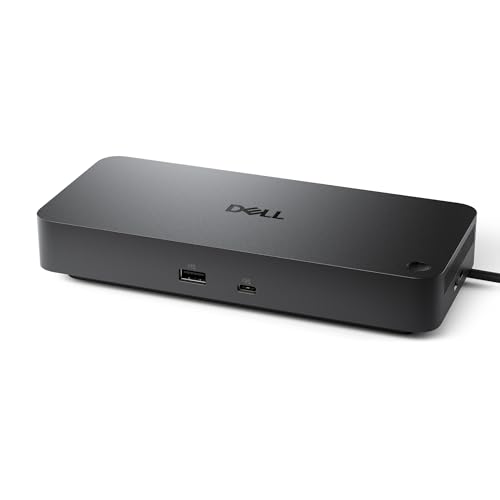
The Dell Pro WD25 is a USB-C docking station with DisplayPort, HDMI, USB-A, USB-C, and Ethernet connections. Its listed power delivery is up to 100W, and the product is presented for office use with support for multiple displays on compatible systems. Confirm the exact monitor count, resolution, and laptop support before relying on a quad-display setup.
This dock is aimed at users who want one connection for desk peripherals and laptop power. Its mix of common display and data ports fits a shared office or a Dell-centered setup. It may also suit other compatible laptops, but buyers should check device support rather than assume every USB-C computer gets the same features.
A dock built for a desk can help keep cables in one place and simplify plug-in routines. Its value depends on the display needs and laptop compatibility. Check the box contents, supported monitor modes, and required power source before buying for a multi-screen workstation.
Why It’s Great
- DisplayPort and HDMI support common monitor connections.
- USB-A and USB-C ports serve a range of desk accessories.
- Ethernet offers a wired network option.
- Up to 100W power delivery can support compatible laptops.
- A universal-dock design may suit mixed-device office environments.
Good to Know
- Quad-display support is not universal; verify the exact laptop and display configuration.
- The maximum charging output may vary with the host and power setup.
- Check package contents and port details for your specific WD25 configuration.
5.TobenONE 18-in-1 Triple-HDMI Dock
 TobenONE 18-in-1 Triple-HDMI Dock
” />
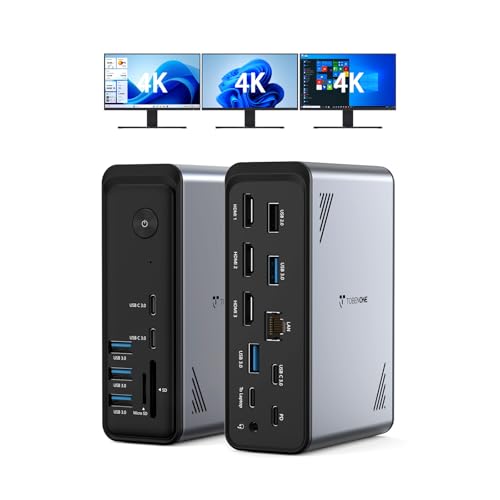
The TobenONE 18-in-1 dock is built around three HDMI outputs and a large mix of USB-A and USB-C ports. The listing describes triple 4K display support and Power Delivery 3.0, but real display results depend on the laptop and its video support. Since the power adapter is not included, check what is needed for your intended setup.
This model may suit a fixed workstation with several HDMI monitors and many wired accessories. Its port count can help bring display, network, and USB connections to one spot. It is best for compatible Windows, Dell, or Lenovo users who have checked that their laptop can extend to the screen count they want.
A single dock can reduce cable clutter, though a large port layout may take more desk space than a small hub. The missing power adapter adds a cost to consider. Verify video compatibility and power needs before deciding whether its feature set offers good value.
Why It’s Great
- Three HDMI outputs suit desks built around HDMI monitors.
- The 18-in-1 design offers many connections in one hub.
- USB-A and USB-C ports can support a range of peripherals.
- Power Delivery 3.0 is listed for compatible laptop charging.
- The product is aimed at multi-screen office setups.
Good to Know
- The power adapter is not included.
- Triple-screen support depends on the laptop, operating system, and display mode.
- The triple 4K claim should not be treated as a guarantee for every monitor combination.
Final Thoughts: The Verdict
My personal top pick is the Anker 8-in-1 Dual Monitor Dock for a straightforward, compact desk with two compatible displays. It balances useful ports, Ethernet, card readers, and laptop power without an oversized station. The best computer docking station for multiple monitors still depends on your laptop’s video support, so check that before ordering.
For more display-port choices, consider the MOKiN 14-in-1 Dock; it suits a busy desk with mixed HDMI and DisplayPort screens. The TobenONE may suit compatible Windows users who need three HDMI outputs, but its power adapter is not included. Choose by your laptop’s display limits, required ports, and total budget.