
Computer docking stations connect a laptop to screens, storage, a network, and other desk gear through one hub. They suit home workers, students, and anyone who wants a tidier setup. The best computer docking stations make it easy to plug in once and get to work.
A dock can look perfect on a product page and still cause daily headaches. A weak port layout may leave your monitor dark, while a power limit can drain your laptop during busy work. Some buyers also assume every USB-C port supports video or that two HDMI ports mean two extended screens on every computer. Those small mistakes can turn a simple desk upgrade into a return, extra cables, and lost time. Choosing with your laptop, displays, and work habits in mind helps prevent that frustration.
I focus on practical laptop accessories and compare docks by their listed ports, power needs, display options, and likely desk use. I reviewed the product details provided and considered common compatibility limits, rather than treating big port counts as a promise of universal support. This guide to the best computer docking stations prioritizes clear fit, useful features, and honest trade-offs.
What you’ll learn
- How to match a dock to your laptop’s USB-C and video support
- What dual-monitor claims mean in everyday use
- How charging, Ethernet, and card readers affect desk setup
- Which dock may suit a compact, office, or multi-screen workspace
In This Article
How To Choose The Best best computer docking stations
The best computer docking stations should fit your laptop and your desk, not just offer the biggest port count. Before you buy, check whether your USB-C port supports video and charging, and confirm your computer can run the displays you want. A low-cost dock may save money but can lack power, stable connections, or the right ports. It is also easy to mistake two video ports for support for two separate screens. Start with your laptop model, monitor needs, and charger setup to avoid costly surprises.
Check Laptop and USB-C Compatibility
USB-C describes the plug shape, not every feature it can carry. For video, your laptop usually needs a USB-C port with DisplayPort Alt Mode or a compatible Thunderbolt connection. Check the laptop maker’s specifications before buying a dock. Also confirm whether the dock needs its own power adapter and whether your laptop can accept charging through USB-C. This matters because a dock’s advertised power delivery does not mean every laptop will draw that amount. A simple USB-C hub may suit travel, while a powered office dock may better serve a fixed desk.
Match Display Ports to Your Screens
Count your screens, note their resolution and refresh rate, and check the dock’s supported display modes. Two HDMI ports do not guarantee two independent displays on every computer. Some Macs, for example, have limits on native external display support, and some docks mirror screens instead of extending them. Read the compatibility notes for your exact laptop and operating system. If you need sharp 4K output or several screens, verify the resolution at the intended refresh rate. The best computer docking stations make the required connections clear before you plug them in.
Plan Power, Ports, and Desk Use
List the devices you use each day: keyboard, mouse, external drive, Ethernet, SD card, or headset. Then compare that list with the dock’s port types and count. Check the stated charging power and remember that a dock may reserve some power for its own operation. A compact hub can be a good fit for occasional use or travel, while a full desk dock can reduce cable swapping. Avoid paying for ports you will never use, but leave room for one or two future devices. This practical check helps you choose among the best computer docking stations.
Quick Comparison
| Model | Category | Best For | Key Spec | Amazon |
|---|---|---|---|---|
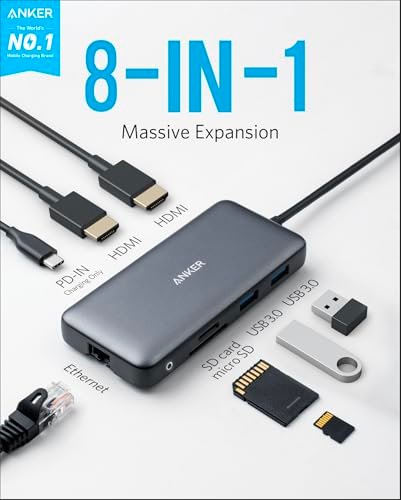
| Anker 8-in-1 Dual Monitor Dock | Best Overall | USB-C laptop users wanting a compact desk hub | Dual HDMI, up to 85W PD | Amazon |
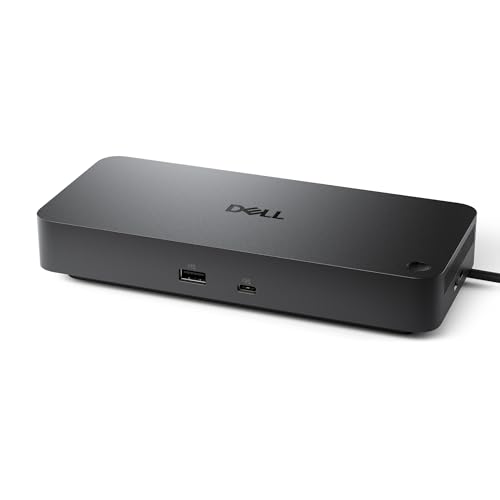
| Dell Pro Dock WD25 | Office Dock | A Dell-focused or mixed-device office | USB-C, up to 100W, DP and HDMI | Amazon |
| Acer 9-in-1 USB-C Dock | Compact Pick | Users needing HDMI, card slots, and USB ports | Two HDMI ports, up to 100W PD compatible | Amazon |
| 14-in-1 USB-C Multiport Dock | Port-Rich Pick | Users connecting varied desk gear | HDMI, DisplayPort, Ethernet, USB, SD/TF | Amazon |
| 8-in-1 USB-C Quad Display Adapter | Display Flexibility | Setups that need HDMI, DP, and VGA options | HDMI, DP, VGA, and PD | Amazon |
In-Depth Reviews for best computer docking stations
1.Anker 8-in-1 Dual Monitor Dock
 Anker 8-in-1 Dual Monitor Dock
” />
This Anker 8-in-1 USB-C dock brings two HDMI ports, Gigabit Ethernet, USB connections, and SD and TF card readers into one compact hub. It supports up to 85W power delivery when paired with a suitable charger, which is sold separately. Its mix of display and data ports makes it a useful choice for a tidy laptop desk.
The compact design keeps common connections close at hand, so you can attach a monitor, wired network, and memory card without a pile of separate adapters. It is best suited to USB-C laptop owners who want a portable hub for work or study. Check your laptop’s video support and display limits before relying on both HDMI outputs.
The small hub takes little desk space and needs minimal care beyond keeping its ports clear. A separate charger adds to the cost, and the compact build is less suited to heavy, permanent cable loads. For users who need its mix of ports, it offers strong everyday value.
Why It’s Great
- Two HDMI ports give compatible laptops flexible display connections.
- Gigabit Ethernet can provide a wired network link.
- SD and TF slots simplify memory card transfers.
- Up to 85W power delivery can reduce laptop charging clutter with a suitable charger.
- Compact size works well for a shared desk or travel bag.
Good to Know
- The charger is not included, so budget for a compatible power adapter if needed.
- USB-C video support and dual-screen behavior depend on the laptop and operating system.
- The product details do not establish that both screens extend independently on every computer.
2.Dell Pro WD25 USB-C Docking Station
 Dell Pro WD25 USB-C Docking Station
” />
The Dell Pro WD25 is a USB-C docking station aimed at desk work, with DisplayPort, HDMI, Ethernet, USB-A, and USB-C connections. Its listed power delivery reaches up to 100W, which can help reduce separate laptop charging cables when the laptop and dock setup support it. The stated quad-display capability makes compatibility checks especially important.
This dock suits office users who want several device connections in one place and prefer a work-focused setup. The mix of video and USB ports can simplify daily plug-in routines for compatible computers. Before buying, confirm the exact display modes, power needs, and included accessories for your laptop and monitors.
A dedicated desk dock can keep cables grouped and reduce repeated plug changes. Its value depends on whether you need the broad port mix and higher power delivery. Check the full package details and workspace fit before purchase, especially if you plan to use several displays.
Why It’s Great
- Includes both DisplayPort and HDMI for varied monitor connections.
- Ethernet supports a wired network connection at a desk.
- USB-A and USB-C ports help connect common accessories.
- Up to 100W power delivery may support compatible laptop charging.
- Designed around office use and multi-display setups.
Good to Know
- Actual display count and resolution depend on the laptop, operating system, and dock configuration.
- Confirm whether the required power adapter and cables are included before ordering.
- The feature set may be more than needed for a simple single-monitor setup.
3.Acer 9-in-1 Dual HDMI USB-C Dock
 Acer 9-in-1 Dual HDMI USB-C Dock
” />
This Acer-branded 9-in-1 USB-C dock lists two HDMI ports, USB-A and USB-C connections, SD and microSD slots, and compatibility with up to 100W power delivery. Its listed HDMI support includes 4K at 60Hz, though the result depends on the connected laptop and display setup. It combines everyday desk ports in a compact format.
The short 0.65-foot cable can keep the hub near a laptop without taking much room. It may suit users who move between home, class, and office, or who need card readers alongside monitor ports. Check your computer’s USB-C video support and confirm how many independent screens it can run.
Its compact footprint makes storage and basic desk care simple. The built-in cable keeps the hub attached, so handle it gently when packing or moving it. For users who need its ports, it offers a practical middle ground between a basic adapter and a full dock.
Why It’s Great
- Two HDMI outputs offer useful display connection options.
- The listing specifies 4K at 60Hz HDMI support for compatible setups.
- SD and microSD readers help transfer photos and files.
- USB-A and USB-C ports support a mix of newer and older devices.
- Compact size and short cable suit portable workspaces.
Good to Know
- Up to 100W PD is compatibility information, not a guarantee of supplied charging power.
- Dual-monitor output depends on the laptop’s graphics and USB-C video support.
- The short attached cable may not reach every preferred desk position.
4.14-in-1 USB-C Multiport Dock
 14-in-1 USB-C Multiport Dock
” />
This 14-in-1 USB-C multiport adapter lists two HDMI outputs, DisplayPort, Ethernet, four USB ports, two USB-C ports, SD and TF readers, and up to 100W power delivery compatibility. The broad port mix can reduce the need for separate adapters. Check the maker’s display notes and laptop support before planning a multi-screen setup.
With ports for displays, storage, and network access, this dock may suit users who connect many devices to one laptop. It can be handy for a home office that uses both older USB accessories and modern USB-C gear. Its usefulness depends on having enough space and choosing a compatible charging setup.
A single multiport hub can help keep a busy desk more organized, but its many connections call for careful cable placement. Review the port layout and power requirements before buying. It can be good value for users who will use several of its features, rather than just one or two.
Why It’s Great
- HDMI and DisplayPort provide several video connection choices.
- Ethernet offers a wired network option.
- A mix of USB-A and USB-C ports supports varied accessories.
- SD and TF slots suit users who transfer files from cards.
- The large port selection can replace several small adapters.
Good to Know
- The number of independent screens depends on laptop and operating system support.
- Up to 100W PD compatibility does not confirm that a charger is included.
- A 14-in-1 hub may be unnecessary for users with a simple desk setup.
5.8-in-1 HDMI, DP, and VGA USB-C Dock
 8-in-1 HDMI, DP, and VGA USB-C Dock
” />
This 8-in-1 USB-C adapter includes HDMI, DisplayPort, and VGA outputs, plus three USB 2.0 ports and power delivery. The range of video connectors can help link a laptop to different generations of screens or projectors. Review the exact output limits and laptop compatibility before expecting several displays to work at once.
Its mix of HDMI, DP, and VGA can be useful in classrooms, meeting rooms, and offices with older equipment. It is best suited to users who value connection choice over high-speed USB ports. The listing names support for multiple screens, but your laptop’s display support still sets the real limit.
The compact adapter can help reduce the number of separate video converters in a bag. Its USB 2.0 ports are intended for basic accessories, not demanding fast storage. It may offer good value when the older video connections are useful, but less so for speed-focused desks.
Why It’s Great
- HDMI, DisplayPort, and VGA cover a range of screen connections.
- Can be useful with older projectors that still use VGA.
- Three USB 2.0 ports support basic input devices.
- Power delivery can help keep a compatible laptop charged.
- A compact adapter may replace multiple single-purpose converters.
Good to Know
- USB 2.0 is slower than USB 3.x for file transfers and external drives.
- Multi-display support depends on the laptop, operating system, and output modes.
- Check whether a suitable charger is required or included for power delivery.
Final Thoughts: The Verdict
My personal top pick is the Anker 8-in-1 Dual Monitor Dock for its useful mix of HDMI, Ethernet, USB, and card-reader ports in a compact hub. It is a strong fit for many USB-C laptop desks, provided your computer supports the display setup you need. Among the best computer docking stations here, it balances everyday features with easy portability.
For a more office-focused setup, consider the Dell Pro WD25, with its broader desk connections and listed 100W power delivery. The Acer suits users who want card slots and dual HDMI, while the 14-in-1 hub fits port-heavy desks. Check laptop compatibility and your budget, then choose the dock that matches your actual devices.
1 thought on “Best Computer Docking Stations: Choose The Right Hub”
Comments are closed.