
A laptop-to-monitor adapter or dock links your computer to an external screen, whether you need a simple video cable or extra ports. Students, remote workers, and home users buy one for a larger view, a cleaner desk, or more room for work. This guide helps you find the best connection laptop to monitor for your setup.
A connector that looks right can still fail. HDMI-to-VGA and VGA-to-HDMI are not the same, USB-C ports do not all support video, and a multi-screen adapter may need drivers. A cheap or mismatched device can mean a blank screen, fuzzy picture, or wasted money. That is frustrating when a call is starting or a deadline is close. Check your laptop’s ports, monitor inputs, operating system, and display needs before you buy. The right match makes daily use feel simple, not like a tech puzzle.
I focus on practical laptop display connections and compare each option by its stated ports, signal direction, and key compatibility needs. I reviewed the supplied product details with common laptop and monitor setups in mind, while noting where operating-system support or port features can matter. This guide prioritizes clear fit, honest limits, and useful choices when you want the best connection laptop to monitor.
What you’ll learn
- How to match laptop ports to monitor inputs.
- Why HDMI and VGA adapters only work in the stated direction.
- When a USB-C hub or DisplayLink adapter may suit your setup.
- Which product is meant for a monitor and which is for legacy AV gear.
In This Article
How To Choose The Best best connection laptop to monitor
The best connection laptop to monitor is the one that matches both ends of your setup. A familiar plug does not prove that a port can send video, and a converter may only work in one direction. Low-quality adapters can also cause flicker, poor image quality, or unreliable links. Before buying, check your laptop model, monitor input, operating system, desired resolution, and whether you need power or extra USB ports. A few minutes of checking can save a return and keep your desk working smoothly.
Match Ports and Signal Direction
Start by checking the ports on your laptop and monitor. HDMI to HDMI is often the simplest route, while USB-C video depends on the laptop port supporting a video mode such as DisplayPort Alt Mode. Read converter labels carefully: an HDMI-to-VGA adapter sends an HDMI source to a VGA display, not the other way around. An RCA-to-HDMI converter is for older composite AV sources, not for a modern laptop output. Matching the right direction is key to finding the best connection laptop to monitor without guesswork.
Check Resolution, Refresh Rate, and Power
Choose an adapter that supports the screen resolution and refresh rate you plan to use. A product title that says 4K does not always mean every port, cable, or refresh rate supports 4K, so check the full listing and your laptop’s output limits. For USB-C hubs, confirm whether the port supports video and whether the charging input provides pass-through power. Avoid assuming a hub includes a charger or cable that meets your needs. These checks help the best connection laptop to monitor stay clear and reliable.
Confirm OS and Multi-Display Support
If you want more than one external screen, check both your laptop’s graphics limits and the adapter’s operating system requirements. Some USB graphics adapters use DisplayLink software, which may need a driver and can behave differently across Windows, macOS, and ChromeOS. USB-C docks also cannot bypass every laptop’s built-in display limit. For a single screen, a direct video adapter is often simpler. For a work desk with several screens, choose a dock only after confirming the exact laptop model and display setup.
Quick Comparison
| Model | Category | Best For | Key Spec | Amazon |
|---|---|---|---|---|
| WAVLINK USB to HDMI Adapter | Multi-display adapter | Compatible computers needing extra screens | DisplayLink; driver may be required | Amazon |
| Wenter RCA to HDMI Converter | AV converter | Composite AV devices and HDMI displays | RCA input to HDMI output; 1080p | Amazon |
| BENFEI HDMI to VGA Adapter | Video adapter | HDMI laptops and VGA monitors | One-way HDMI source to VGA display | Amazon |
| USB-C to HDMI Multiport Adapter | USB-C hub | USB-C laptops needing HDMI and USB | HDMI, charging input, USB 3.0 | Amazon |
| USB-C Quad Display Docking Station | Multiport dock | Compatible laptops with varied display ports | HDMI, DisplayPort, VGA, and USB | Amazon |
In-Depth Reviews for best connection laptop to monitor
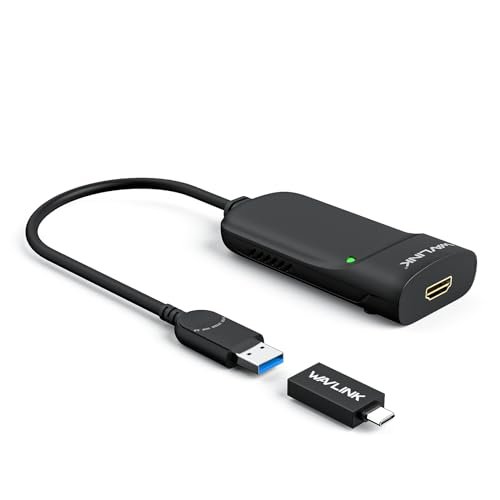
1.WAVLINK USB to HDMI DisplayLink Adapter
 WAVLINK USB to HDMI DisplayLink Adapter
” />
The WAVLINK adapter connects a computer to an HDMI display through USB 3.0 or USB-C. Its DisplayLink technology can add screens beyond a basic video connection on supported systems. The listing states support for up to six monitors, but real limits depend on the computer, operating system, drivers, and display setup. It stands out for flexible multi-screen use.
This compact adapter can help turn a laptop into a larger work station without replacing the computer. It suits people who need extra screens for office tasks, research, or dashboards. Set aside time to install the required DisplayLink software and check current OS support first. It is a useful option when a direct USB-C video link is not enough.
The small format keeps desk clutter low, and USB connection makes it easy to move between supported computers. Build quality and long-term value depend on careful handling and a compatible setup. Check the product listing for current system support, included accessories, and display limits before purchase.
Why It’s Great
- Offers USB-A and USB-C connection options.
- DisplayLink can support added screens on compatible systems.
- Useful for desk work with several windows open.
- Compact design is easy to pack or store.
- Can help computers with limited native display outputs.
Good to Know
- DisplayLink software and drivers may be needed.
- Actual screen count depends on the computer and operating system.
- It is not a simple plug-and-play video cable for every setup.
2.Wenter RCA to HDMI AV Converter
 Wenter RCA to HDMI AV Converter
” />
The Wenter converter changes a composite RCA video and audio signal into HDMI output, with 1080p listed in the product name. It is built for older sources such as a VCR, DVD player, or classic game console. It does not turn a laptop’s HDMI output into RCA. This clear direction makes it a niche tool, not a standard laptop monitor adapter.
Setup is suited to people bringing older AV gear to a newer HDMI screen. Connect the source’s RCA plugs to the converter, then connect its HDMI output to the display. The supplied cables can make a simple setup easier, but users should confirm the source has composite RCA output. It is best for home media, not a modern laptop’s normal display connection.
The small converter is easy to place beside a TV or monitor and needs little upkeep. Its value rests on solving a specific old-to-new video problem. Check the power needs and included cable details in the listing before buying, and do not expect it to improve the source image beyond its limits.
Why It’s Great
- Bridges composite AV sources to HDMI displays.
- Useful for older VCRs, consoles, and DVD players.
- 1080p output is stated in the product title.
- Includes RCA and HDMI cables according to the listing.
- Simple purpose makes it easy to choose for legacy gear.
Good to Know
- It is not a laptop-to-monitor adapter for HDMI laptops.
- Signal direction is RCA input to HDMI output only.
- It cannot restore detail that is absent from an old source.
3.BENFEI HDMI to VGA Adapter
 BENFEI HDMI to VGA Adapter
” />
The BENFEI adapter sends video from an HDMI source to a VGA display or projector. Its gold-plated connector is designed for a direct fit, and the small adapter avoids the need for a bulky dock. It can be the best connection laptop to monitor when a laptop has HDMI but the available screen only has VGA. It is a one-way converter.
The male HDMI plug connects to a laptop, desktop, or other HDMI source, while the VGA socket takes a display cable. This makes it handy for older office monitors, classroom projectors, and some legacy screens. It is best for users who need basic video on existing VGA gear. Check whether your monitor needs a separate VGA cable and audio connection.
Its compact body is easy to carry in a laptop bag and needs little care beyond keeping the ports clean. As a focused adapter, it can offer good value when the direction matches your setup. It does not add modern display features, so confirm resolution support and any power needs on the listing.
Why It’s Great
- Connects an HDMI computer to a VGA screen.
- Small size suits travel and meeting rooms.
- Useful for keeping an older monitor in service.
- Simple adapter design needs little desk space.
- Works with a range of HDMI sources listed by the seller.
Good to Know
- It cannot convert a VGA laptop output to an HDMI monitor.
- VGA carries video, not audio.
- A VGA cable may be needed to reach the display.
4.USB-C to HDMI Multiport Adapter
 USB-C to HDMI Multiport Adapter
” />
This USB-C multiport adapter combines HDMI output, a charging port, and USB 3.0 in one small hub. The listing describes 4K video and 10Gbps USB, but results depend on the laptop, cable, screen, and supported modes. It stands out by adding a monitor connection and useful ports without the size of a full docking station.
For a laptop with a video-capable USB-C port, the hub can make it easier to connect an HDMI monitor while using a USB accessory. It suits students, travelers, and home workers who want fewer items in a bag. Check that the laptop’s USB-C port supports video output; a charging-only or data-only port will not send a picture.
The compact hub is easy to store and has no large dock to manage. Keep its ports free of dust and avoid pulling on the cable when disconnecting. It can be strong value for a simple desk setup, but check charging limits, display modes, and included accessories before relying on it.
Why It’s Great
- Combines HDMI and USB connectivity in a compact hub.
- Includes a charging input for compatible pass-through use.
- Useful for laptops with few built-in ports.
- Can reduce the number of adapters on a desk.
- Convenient for travel and everyday work.
Good to Know
- The laptop USB-C port must support video output.
- Charging performance depends on the charger and host device.
- Confirm resolution and refresh-rate support for your exact setup.
5.USB-C Quad Display Docking Station
 USB-C Quad Display Docking Station
” />
This USB-C dock offers HDMI, DisplayPort, and VGA connections along with USB ports and a power delivery input. The product title promotes quad display support, but the number of active screens and their resolution depend on the laptop, operating system, and dock mode. It stands out for bringing several display types and ports to one desk connection.
The dock is aimed at users who want to connect screens and accessories without plugging each one into a laptop. It may suit an office desk with mixed monitor inputs, provided the laptop supports the needed USB-C video features. Before buying, confirm your computer’s display limits and whether the dock’s outputs can work at the same time.
A single dock can make a desk easier to reconnect, though its many ports need room and care. Keep cables organized and verify power delivery needs with your own charger. Its value is strongest for a compatible, port-heavy setup; users with one screen may be better served by a small HDMI adapter.
Why It’s Great
- Provides HDMI, DisplayPort, and VGA display options.
- Adds USB ports for common desk accessories.
- Can reduce repeated cable swaps when docking.
- Offers a broad set of connection types in one device.
- Useful for compatible laptops in multi-screen work areas.
Good to Know
- The advertised screen count is not guaranteed for every laptop.
- USB-C video and operating system support must be confirmed.
- A charger may be needed for power delivery and may not be included.
Final Thoughts: The Verdict
My personal top pick is the USB-C to HDMI Multiport Adapter for a compatible laptop with one monitor. It adds useful ports in a compact form and keeps setup simple. It is my practical choice for the best connection laptop to monitor when the host USB-C port supports video.
For more screens, consider the WAVLINK USB to HDMI DisplayLink Adapter, after checking drivers and OS support. The BENFEI adapter suits an HDMI laptop paired with an older VGA screen, while the Wenter converter is for legacy AV gear, not laptop output. Choose based on your ports, screen count, and budget, and verify compatibility before you buy.
1 thought on “Best Connection Laptop To Monitor: Find The Right Setup”
Comments are closed.